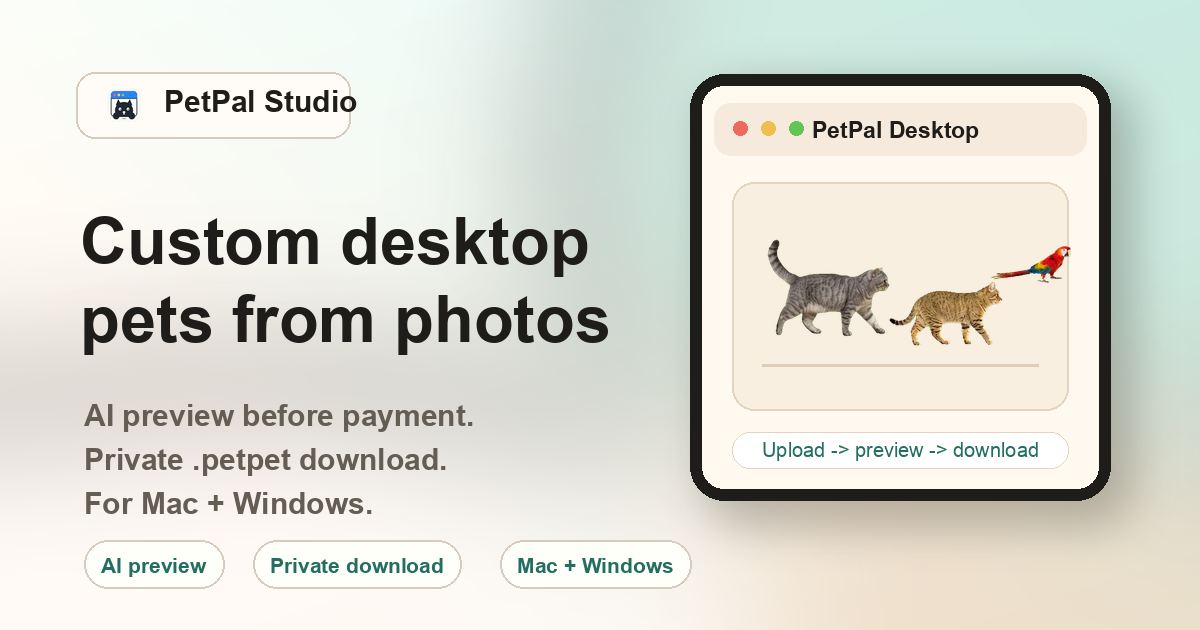
Three ways to make a desktop pet — and why AI is the fastest
When people search "make a desktop pet," they are usually looking at one of three approaches: (1) download a pre-made character pack and a runtime engine like Shimeji, (2) create custom sprites manually using pixel art tools and a game framework, or (3) use an AI tool that generates the pet from a photo. PetPal Studio is option three — upload a photo, pay once to unlock the generated preview, and import the private .petpet pack. No drawing, no coding, no searching for compatible engine versions.
Step-by-step: making a desktop pet with PetPal Studio
1. Choose your photo carefully
The single most important variable in the entire process. Use a photo where your pet is clearly visible — front-facing or three-quarter angle, natural daylight, simple background. Avoid blur, heavy shadows, tiny subjects, or photos where the pet is mostly hidden behind objects.
2. Open PetPal Studio and upload
Go to the Create page on petpal.studio. Select your photo file, pick the animal type from the dropdown (cat, dog, rabbit, bird, or other), and click Generate. No account or login required at this stage.
3. Wait for processing
After upload, the service prepares the locked generated preview and private package. Timing can vary by photo and queue state, so keep the order details available.
4. Pay once to unlock
Checkout unlocks the generated preview, private .petpet file, and delivery links. Review the unlocked preview before importing the file into PetPal Desktop.
5. Download and import
After payment, you receive two private download links: one for the PetPal Desktop app (Mac or Windows) and one for the .petpet file generated from your photo. The $10 is a one-time charge.
6. Install and import
Download and install PetPal Desktop. Open the app, find the tray/menu bar icon, click Import .petpet, and select the downloaded file. Your pet appears on the desktop immediately — it walks, sits, and plays across your screen.
What to do if the unlocked preview does not look right
Not every photo produces a perfect result on the first try. Here is what to try before giving up:
- Different photo: Try a photo with better lighting, a simpler background, or a clearer body outline. Even small changes in the input can produce noticeably different output.
- Closer crop: If the pet is small in the frame, try a photo where it fills at least 30-40% of the image area.
- Different angle: Front-facing photos usually work better than profile shots. Three-quarter angles are a good compromise if the pet won't face the camera directly.
- Check for obstructions: Hands holding the pet, furniture in front of the body, or heavy motion blur will confuse the AI. Use a photo where the pet is unobstructed and still.
FAQ
What do I need to start?
A clear photo of your pet and an email address for order delivery. No drawing skills, coding knowledge, or special software needed.
Do I need to draw sprites?
No. PetPal Studio prepares the desktop pet package from your uploaded photo.
Can I upload before paying?
Yes. You can upload a photo before payment; checkout unlocks the generated preview and private .petpet file.
What should I do after payment?
Download PetPal Desktop for Mac or Windows, then download and import the generated .petpet file.
Does it work with any pet?
Cats, dogs, rabbits, and birds with clear outlines work best. Unusual angles, exotic pets with unusual shapes, or blurry photos may produce inconsistent results.
How long does the whole process take?
Processing time can vary by source photo and queue state. Keep the order page or delivery email available while the generated preview and package are prepared.